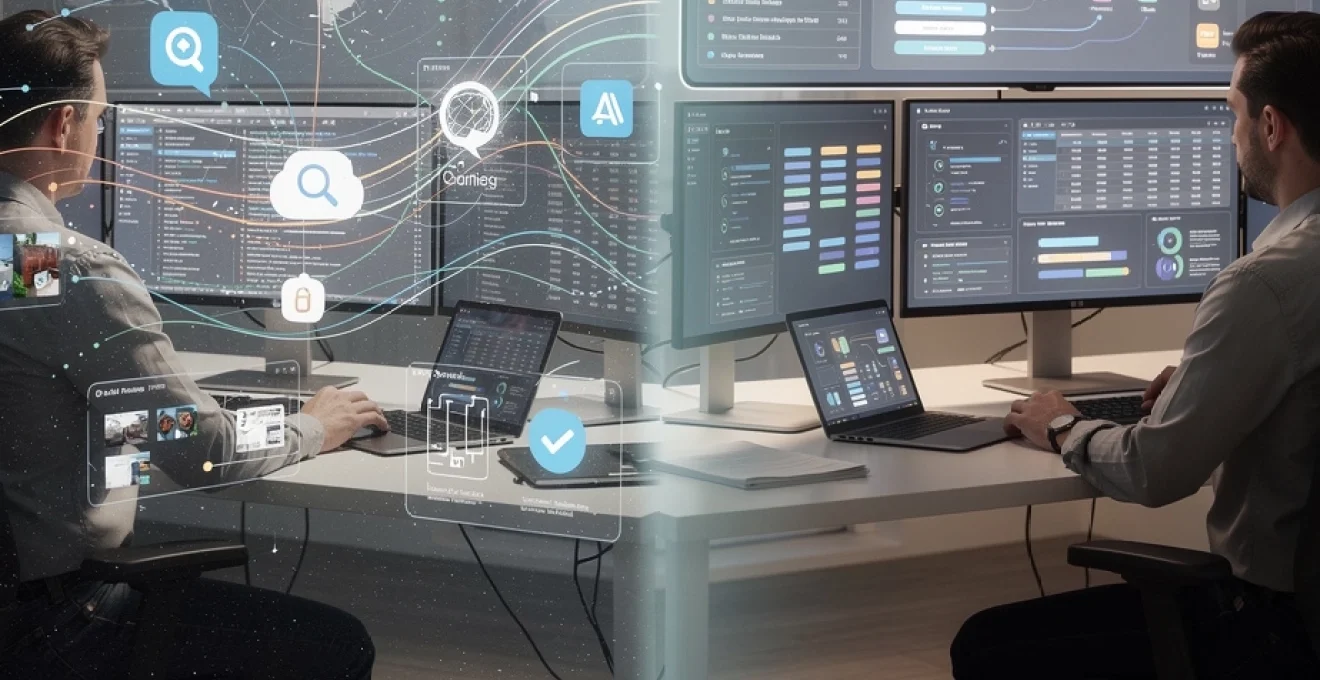
The modern knowledge worker’s digital environment has evolved into a complex ecosystem of files, applications, and workflows that often resembles a digital labyrinth more than an organised workspace. Research indicates that employees spend approximately 2.5 hours daily searching for information, whilst 90% of organisations struggle with data silos that impede productivity. The exponential growth of digital content, coupled with the proliferation of cloud-based tools and remote working arrangements, has created unprecedented challenges in maintaining coherent digital workspace organisation. This digital entropy doesn’t merely affect individual productivity; it fundamentally undermines organisational efficiency, decision-making processes, and competitive advantage in an increasingly data-driven business landscape.
Digital workspace audit framework: identifying productivity bottlenecks
Conducting a comprehensive digital workspace audit requires systematic analysis of multiple layers within your technological infrastructure. The audit process begins with establishing baseline metrics for current productivity levels, identifying friction points in daily workflows, and mapping the complete digital ecosystem that supports knowledge work activities. Effective auditing reveals hidden inefficiencies that consume valuable time and cognitive resources, whilst providing quantifiable data to guide optimisation efforts.
The audit framework encompasses four critical assessment areas: file system architecture evaluation, application redundancy identification, cloud storage synchronisation analysis, and desktop environment performance measurement. Each component provides unique insights into workspace efficiency, revealing patterns of digital behaviour that either enhance or impede professional effectiveness. Understanding these interconnected systems enables targeted interventions that deliver measurable productivity improvements.
File system architecture assessment using TreeSize professional
TreeSize Professional serves as an invaluable diagnostic tool for understanding file system organisation and identifying storage inefficiencies within digital workspaces. The application provides comprehensive visualisation of directory structures, enabling users to identify duplicate files, oversized folders, and orphaned data that contribute to system slowdowns and navigation difficulties. Through detailed analysis of file distribution patterns, professionals can pinpoint areas where poor organisation creates daily friction in accessing critical information.
The assessment process involves examining folder hierarchies across multiple storage locations, including local drives, network shares, and synchronised cloud directories. TreeSize Professional’s duplicate file detection capabilities reveal redundant data that consumes valuable storage space whilst creating confusion about authoritative file versions. Regular architectural assessments using such tools help maintain optimal file system performance and support more intuitive navigation patterns for knowledge workers.
Application redundancy analysis through process monitor
Process Monitor provides granular insights into application behaviour, revealing redundant processes and conflicting software installations that degrade system performance. Modern digital workspaces often accumulate multiple applications serving similar functions, creating unnecessary complexity and resource consumption. The tool’s real-time monitoring capabilities expose applications that launch automatically, consume excessive system resources, or create file system conflicts that impede productivity.
Through systematic process analysis, organisations can identify opportunities to consolidate software suites, eliminate redundant functionality, and streamline application portfolios. This analysis extends beyond simple process counting to examine inter-application dependencies, resource utilisation patterns, and workflow integration effectiveness. Strategic application rationalisation reduces cognitive load whilst improving system responsiveness and reliability for daily operations.
Cloud storage synchronisation conflicts in OneDrive and dropbox
Cloud storage synchronisation conflicts represent one of the most frustrating aspects of modern digital workspace management, often creating multiple file versions and workflow disruptions. OneDrive and Dropbox, whilst powerful collaboration platforms, can generate significant organisational challenges when synchronisation processes encounter network interruptions, conflicting edits, or permission restrictions. These conflicts multiply exponentially in team environments where multiple users access shared resources simultaneously.
Effective conflict resolution requires implementing structured naming conventions, establishing clear file ownership protocols, and configuring synchronisation settings to minimise version conflicts. Regular monitoring of synchronisation logs reveals patterns in conflict generation, enabling proactive measures to prevent data inconsistencies. Understanding the underlying causes of synchronisation issues helps organisations develop policies that support seamless collaboration whilst maintaining data integrity across distributed teams.
Desktop clutter metrics and performance impact measurement
Desktop clutter extends beyond visual distraction to create measurable performance impacts on both system resources and cognitive processing efficiency. Research demonstrates that cluttered desktop environments increase task completion times by an average of 23% whilst reducing focus and decision-making effectiveness. Measuring desktop clutter involves quantifying file counts, analysing file types and
shortcut usage, and evaluating the frequency of unnecessary manual navigation. Simple metrics—such as the number of items on the desktop, average time to locate a file, or frequency of search usage—provide quantitative indicators of digital clutter. Coupled with system performance profiling, these measurements reveal correlations between visual disorder, increased CPU or disk activity, and slower context switching for the user.
Establishing periodic desktop reviews, combined with automated clean-up routines, helps maintain a lean, intentional workspace. For instance, moving completed items to an Archive folder weekly and limiting the desktop to active project shortcuts can materially reduce search time. When you treat your desktop as a tactical “launchpad” rather than long-term storage, you lower cognitive load and improve digital workspace performance in tandem.
Information architecture principles for knowledge workers
Once the audit reveals structural weaknesses, the next step is to redesign your information architecture so that it aligns with how you actually work. Information architecture for knowledge workers is less about rigid folder trees and more about making information findable at the moment of need. This means organising digital assets according to outcomes, responsibilities, and themes rather than legacy habits like year-based or department-based folders.
Effective information architecture integrates hierarchy, tagging, and linking to create multiple paths to the same content. Instead of forcing you to remember a single “correct” location, a well-designed digital workspace supports flexible retrieval: by project, by topic, by client, or by date. When structure mirrors mental models and workflows, you spend less time navigating and more time creating value.
PARA method implementation for digital asset management
The PARA method—Projects, Areas, Resources, Archive—offers a pragmatic framework for digital asset management that scales from individual contributors to large teams. Rather than scattering documents across application-specific silos, PARA encourages you to organise everything around the actionability of information. Projects represent short-term, outcome-driven efforts; Areas capture ongoing responsibilities; Resources hold long-term reference material; Archive stores inactive content for future retrieval.
Implementing PARA in your digital workspace starts with mapping your existing folders to these four buckets. For example, in OneDrive or Google Drive, you might create top-level folders named Projects, Areas, Resources, and Archive, then gradually migrate active files as you touch them. Email labels, note-taking apps, and task managers can mirror the same structure, giving you a consistent mental model across tools. This cross-platform PARA implementation reduces friction when switching contexts and helps you instantly know where any digital asset belongs.
To avoid PARA becoming yet another abandoned system, establish lightweight maintenance rituals. A weekly review to move completed project folders into Archive and promote frequently used references into Resources keeps the structure current. Over time, this approach transforms your digital workspace from a static file dump into a dynamic, living system that reflects your real workload.
Taxonomic classification systems using notion database structures
Whilst PARA provides a high-level architecture, many knowledge workers need richer classification for complex knowledge domains. Notion databases excel here because they support taxonomic classification through properties such as status, type, topic, owner, and priority. Instead of burying information in deep folder trees, you store it in flat databases and use properties to slice and filter as needed.
Consider a central “Knowledge Base” database in Notion that holds documents, meeting notes, SOPs, and research. Properties like Category (e.g., Marketing, Product, HR), Subcategory (e.g., Campaigns, Roadmaps), and Workstream create a flexible taxonomy without locking you into a rigid structure. Views—such as “By Team,” “By Client,” or “Recently Updated”—act as dynamic lenses over the same dataset, supporting quick retrieval and cross-functional collaboration.
Designing a sustainable taxonomy requires balance: too few categories and everything becomes “miscellaneous”; too many and the system collapses under its own complexity. A useful rule of thumb is to start with 5–7 top-level categories and let real usage guide refinements. Regular taxonomy reviews, informed by search analytics and user feedback, ensure your Notion-based information architecture stays aligned with how people actually seek information.
Cross-platform tagging strategies with obsidian and logseq
Tags serve as the connective tissue of a modern digital workspace, especially when your information spans multiple tools. Markdown-based knowledge systems like Obsidian and Logseq make tagging first-class citizens, allowing you to create semantic links across notes, projects, and reference materials. A consistent cross-platform tagging strategy transforms isolated notes into a navigable “second brain.”
To implement cross-platform tagging, define a controlled vocabulary of tags that reflect your key dimensions of work—such as #client-name, #meeting-notes, #decision, #idea, and #reference. Use the same tag set in Obsidian, Logseq, and even in file names or cloud storage metadata where possible. When you search for #decision, for instance, you instantly surface commitments across projects and tools, reducing the risk of missed follow-ups.
Graph views in Obsidian and Logseq visually surface relationships between tagged notes, revealing emergent patterns and knowledge clusters. Think of this like switching from a filing cabinet to a map: instead of guessing where something might be, you navigate via landmarks and connections. With disciplined tagging, your digital workspace becomes self-documenting, enabling faster onboarding for new team members and easier knowledge transfer across roles.
Version control workflows for non-technical document management
Version control is often associated with software development, but non-technical teams face the same challenges: conflicting edits, lost changes, and uncertainty about the “latest” version. A lightweight version control workflow for documents can dramatically reduce digital chaos. At its simplest, this means adopting clear naming conventions (for example, Proposal_ClientX_v1.2_2026-03-30) and using shared cloud folders as the single source of truth.
For higher-stakes documents, consider using tools with built-in version history and change tracking, such as Google Docs, Microsoft 365, or Notion. Establish explicit collaboration protocols—who edits directly, who suggests changes, and when a version is “frozen” for review. You might also maintain a simple CHANGELOG note associated with critical documents, summarising key edits and decisions over time.
Non-technical version control is less about complex branching and more about clarity and transparency. When everyone knows where to find the canonical file, how versions are named, and how changes are approved, you eliminate a major source of friction in your digital workspace. The result is faster turnaround, fewer errors, and reduced anxiety around collaborative editing.
Workspace containerisation through virtual desktop infrastructure
As digital workspaces grow more complex, many organisations are turning to Virtual Desktop Infrastructure (VDI) and virtual workspaces to create clean, containerised environments. Instead of each device accumulating its own unique clutter, a virtual desktop provides a controlled, centrally managed workspace that follows the user from device to device. This approach reduces configuration drift and ensures that tools, permissions, and policies remain consistent.
From an organisational perspective, workspace containerisation simplifies support and security. IT teams can deploy standardised desktop images for different roles—such as finance, engineering, or customer support—with preconfigured applications, storage mappings, and security controls. When an employee logs in from home, the office, or a thin client, they see the same organised environment, which reduces onboarding time and context-switching overhead.
For knowledge workers, virtual desktops offer a psychological benefit as well: a clear separation between contexts. You might maintain one virtual desktop for deep-focus project work and another for administrivia or testing new tools, akin to having separate physical offices for different modes of work. By isolating experimental or noisy applications in their own containers, you protect your primary digital workspace from becoming bloated and unstable over time.
Automation pipelines for digital decluttering
Even the best information architecture will eventually degrade without ongoing maintenance. Rather than relying solely on willpower, forward-looking teams use automation pipelines to enforce digital decluttering rules in the background. Think of these as “digital housekeeping robots” that tidy your workspace according to predefined policies, ensuring that order persists even during busy periods.
Automation can handle repetitive, low-value tasks such as moving files to appropriate folders, renaming documents according to conventions, or archiving inactive content. When configured well, these pipelines act like a conveyor belt, smoothly shifting assets from “inbox” to organised destinations with minimal manual intervention. The key is to start small, test thoroughly, and then scale rules as confidence grows.
Powertoys FancyZones configuration for multi-monitor productivity
On Windows, Microsoft PowerToys’ FancyZones module transforms multi-monitor setups into structured, predictable workspaces. Instead of dragging and resizing windows ad hoc, you define custom zones—grids, columns, or bespoke layouts—that snap applications into optimal positions. This spatial consistency reduces the micro-friction of window management and supports faster context switching between tasks.
For instance, you might create a layout where your primary monitor has three vertical zones (communication, main work, reference) and your secondary monitor holds dashboards or documentation. With FancyZones, a simple drag or shortcut places each application exactly where it belongs, preserving your mental model of the workspace. Over time, muscle memory builds around these zones, making your digital environment feel as structured as a well-organised physical desk.
Configuring FancyZones thoughtfully also curbs window sprawl, a subtle source of digital clutter. By limiting the number of active zones and reserving specific spaces for specific apps, you create boundaries that discourage endless tab and window proliferation. The result is a calmer, more intentional visual field conducive to focused knowledge work.
Hazel rules engine for automated file organisation on macOS
On macOS, Hazel functions as an intelligent rules engine for file system automation, particularly powerful for taming downloads, screenshots, and ad hoc project files. You define rules based on attributes such as file name, type, date, or content, and Hazel performs actions like renaming, moving, tagging, or even running scripts. It’s akin to hiring a meticulous assistant who silently keeps your folders in order.
A common pattern is to watch the Downloads folder and automatically route invoices to a Finance > Invoices directory, PDFs to a Reading Inbox, and installers to a temporary To Delete folder after use. Screenshots can be renamed with timestamps and moved into project-specific folders based on keywords. Over time, these micro-automations eliminate one of the biggest sources of digital workspace disorder: the ever-growing pile of unsorted files.
To avoid unintended consequences, start with non-destructive rules that only copy or tag files before moving them. Once you’re confident in the logic, enable automatic moves and deletions with appropriate safety nets (such as a “Quarantine” folder). With Hazel as part of your digital decluttering toolkit, your macOS environment can maintain a high level of organisation with very little manual effort.
Zapier integration workflows between slack, trello, and google workspace
Beyond local file systems, much of today’s digital clutter accumulates in cloud-based communication and collaboration tools. Zapier bridges these systems by automating workflows between platforms like Slack, Trello, and Google Workspace. Instead of manually copying information from chat to tasks or from email to documents, you can define “Zaps” that perform these handoffs consistently.
For example, a Zap might convert a Slack message with a specific emoji reaction into a Trello card, automatically assigning it to the right board and list. Another Zap could watch a shared Google Drive folder for new files and post a summary notification in a team channel. These integrations reduce the risk of important information getting trapped in ephemeral conversations, turning ad hoc requests into trackable work items.
When designing Zapier workflows, focus on bottlenecks where human follow-through is fragile: task creation, status updates, and document sharing. By automating these transitions, you reduce cognitive overhead and ensure that your digital workspace reflects reality more accurately. As a side benefit, you also build a more auditable trail of work, which simplifies reporting and knowledge transfer.
IFTTT protocols for cross-device synchronisation
Whilst Zapier excels in business integrations, IFTTT (If This Then That) shines in personal and cross-device synchronisation. IFTTT “applets” can keep notes, reminders, and small artefacts in sync across phones, tablets, and desktops, helping maintain a coherent digital workspace regardless of device. Think of it as creating gentle, background processes that ensure information appears where you naturally expect it.
You might use IFTTT to automatically save starred emails as tasks in your preferred to-do app, sync mobile screenshots to a desktop review folder, or log calendar events into a daily journal document. These micro-automations reduce the number of manual bridges you need to build between tools and contexts. In a world where work frequently hops between devices, such protocols keep your digital footprint consolidated rather than fractured.
As with any automation, clarity of intent is crucial. Ask yourself: “What repetitive action do I perform that a simple ‘if this, then that’ rule could handle?” Starting with a handful of high-impact applets protects you from over-automation, where too many invisible processes create confusion. Done well, IFTTT supports a unified, low-friction digital workspace by making cross-device organisation feel almost effortless.
Cognitive load reduction through interface optimisation
Even with robust structures and automations, a cluttered interface can quietly drain your mental energy. Every extra icon, notification, or menu item competes for attention, increasing cognitive load and slowing decision-making. Interface optimisation is therefore a critical, yet often overlooked, dimension of digital workspace organisation.
Reducing cognitive load begins with ruthless pruning. Disable non-essential notifications, uninstall or hide rarely used applications, and simplify toolbars and sidebars to only the functions you routinely need. Many productivity suites allow you to create custom workspaces or focus modes that strip away visual noise; making these your defaults helps you enter flow faster. In practice, a minimalist interface acts like noise-cancelling headphones for your eyes.
Window and tab management also play a significant role. Techniques such as “single-tasking” windows, browser tab suspender extensions, and dedicated profiles for different roles (for instance, separate browser profiles for personal and work contexts) all help contain complexity. When you open your laptop and see only the tools relevant to your current objective, your brain no longer has to sift through irrelevant stimuli. Over time, this deliberate shaping of your digital environment leads to measurable gains in focus and output.
Digital workspace security hardening and access control
A truly organised digital workspace is not just tidy and efficient; it is also secure. Without robust security hardening and access control, the same structures that make information easy for you to find may also make it easy for unauthorised actors to exploit. Security, therefore, must be woven into your organisational strategy rather than bolted on as an afterthought.
At a foundational level, this means enforcing strong authentication practices (such as multi-factor authentication), using password managers, and segmenting access based on roles and responsibilities. Shared drives, Notion workspaces, and virtual desktops should all respect the principle of least privilege: users see only what they need to perform their work. This not only reduces risk but also declutters individual views, since irrelevant folders and dashboards are no longer visible.
Data classification policies complement your information architecture by defining which assets are public, internal, confidential, or restricted. Once classified, automation can apply appropriate controls—such as encryption, sharing restrictions, or retention rules—without requiring constant manual oversight. Regular security reviews, combined with user training on phishing, device hygiene, and safe collaboration practices, ensure that your organised digital workspace remains resilient against evolving threats.
Ultimately, security hardening should feel like a well-designed seatbelt: ever-present but unobtrusive. When done well, it supports rather than hinders productivity by giving knowledge workers confidence that the information they handle is both accessible and protected. In this way, clarity in your digital workspace extends beyond order and efficiency to encompass trust and safety as well.